Plan work on the roadmap
Review experiment timing and add context that affects interpretation.
The Roadmap places project experiments on a timeline. Use it to understand when work is scheduled and where experiments overlap.
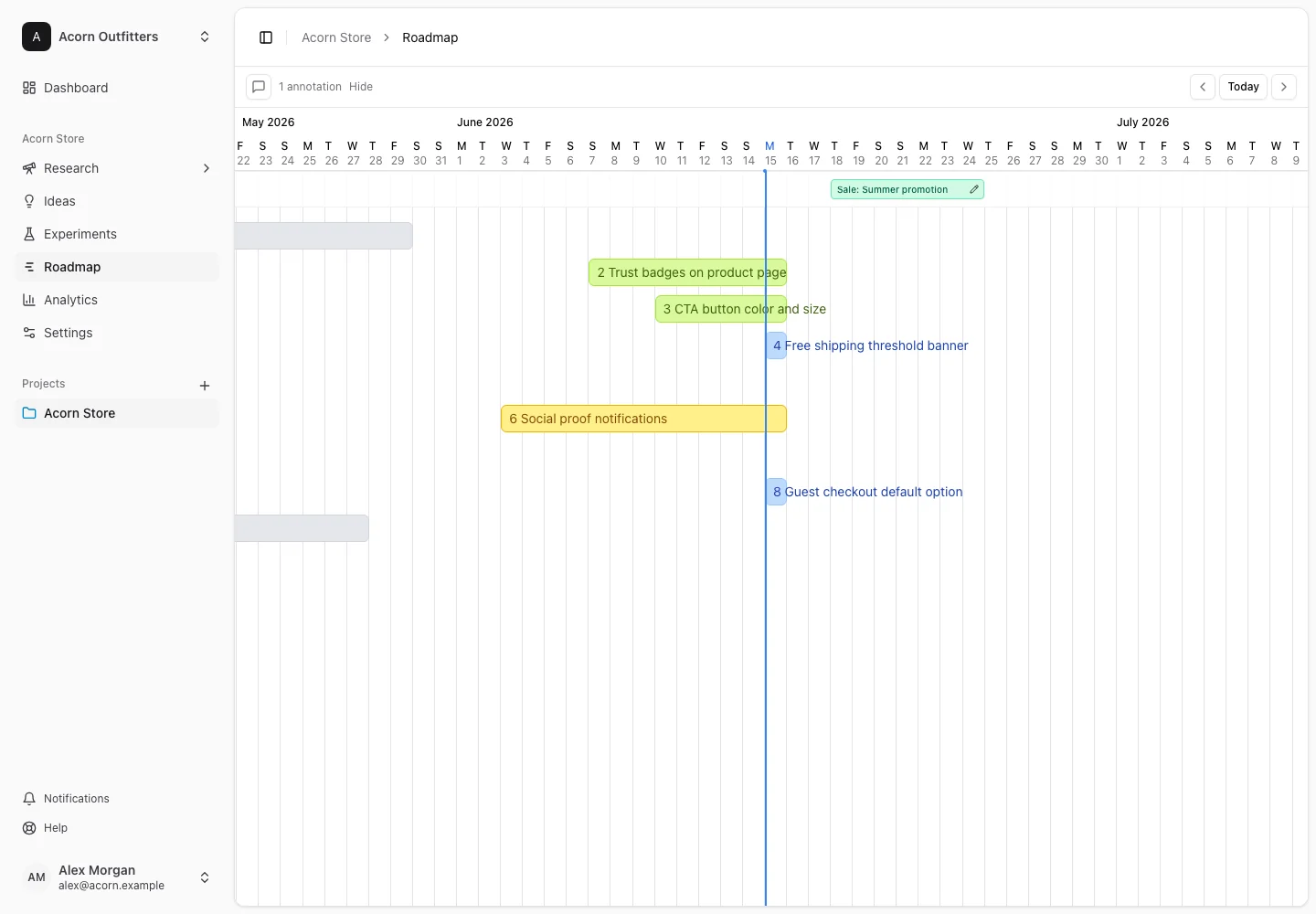
Review the schedule
- Select the project and open Roadmap.
- Use the timeline's date and display controls to inspect the relevant period.
- Open an experiment card to inspect the experiment and its dates.
- Update experiment planning fields where needed, then return to the timeline to check the result.
An experiment needs relevant dates to appear usefully on the timeline. A missing card may be outside the current date window or project rather than deleted.
Add context with annotations
Use the annotation action to add a named event or period such as a promotion, release, or operational change. Choose its type, start date, end date where applicable, and notes. Save and confirm it appears at the intended time.
For example, an annotation named “Spring sale” can explain why several tests experienced unusual traffic during the same week. An annotation provides interpretation context; it does not change experiment measurements.
Review or remove annotations when the underlying plan changes. Keep timing information factual so colleagues do not mistake a planned event for something that actually happened.
For item status definitions see states; for program-level activity see Analytics.