Review, export, and reset survey answers
Read summaries and individual responses, export the selected status, and manage test data.
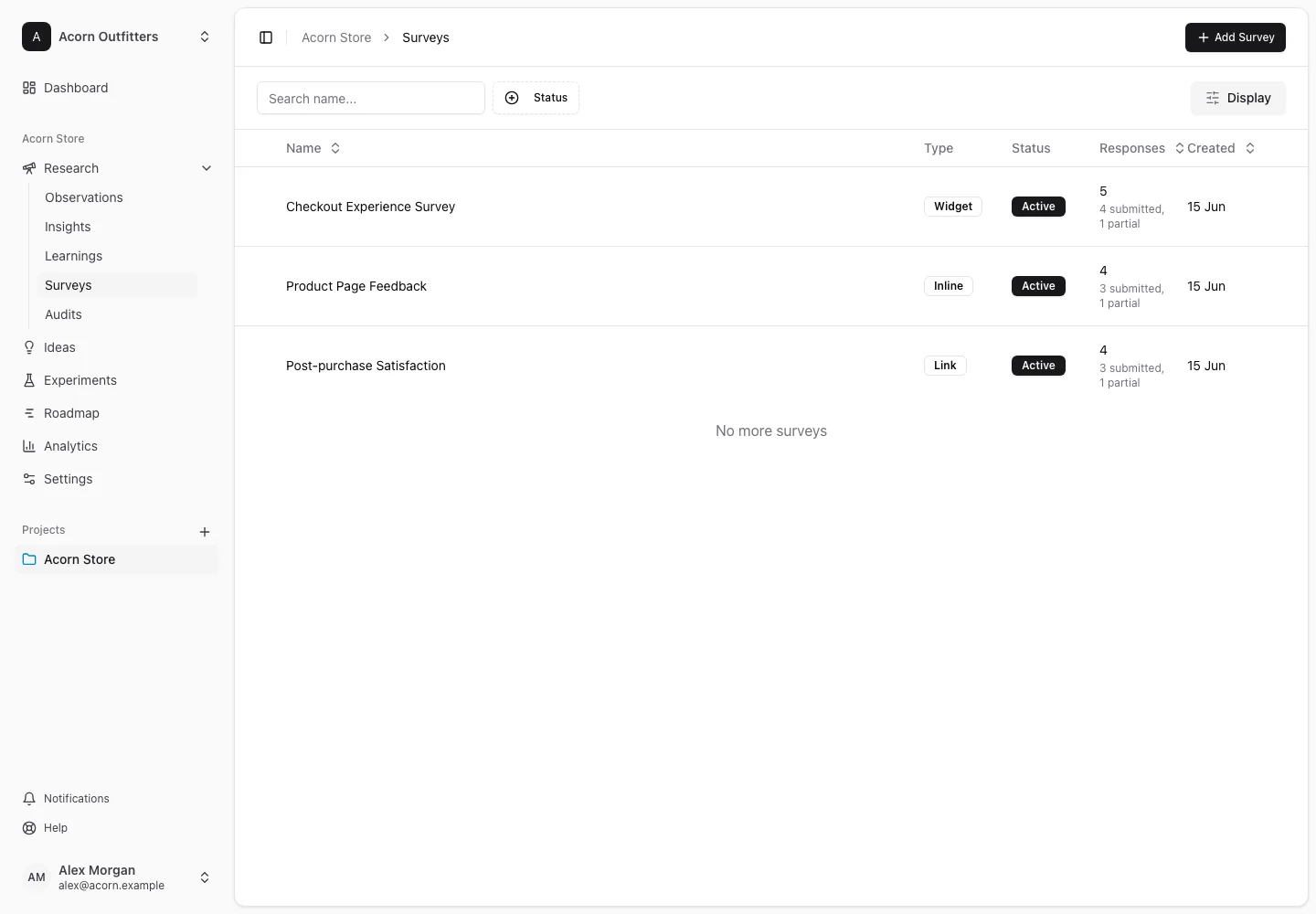
Open a survey to review its collected feedback. Overview summarizes the responses; Answers shows individual submissions and partial responses.
Read the overview
Review the response counts and question-level summaries. Different question types have different summaries, including choice distributions, ratings, NPS, and text answers. Read the underlying answers before treating a summary as a complete explanation of visitor behavior.
When AI is available, a survey's AI action can open a conversation about its responses. Check any interpretation against the actual answers and preserve useful evidence as research.
Inspect individual answers
Open Answers and filter by All, Submitted, or Partial. A partial response is an unfinished response; it is not equivalent to a completed survey. Inspect the shown timestamps and available visitor context alongside the answers.
Use Load more when more responses are available. A list can have more collected answers than the currently loaded rows.
Export
Choose Export, then CSV or Excel (.xlsx). The selected response-status filter determines whether the export includes all, submitted, or partial responses. Confirm that scope in the export menu before downloading.
Reset test answers or delete a survey
Use Reset answers only when you intend to remove every collected answer and response summary from that survey. The survey remains available and can collect new answers, but the deleted answers cannot be recovered through this action.
Deleting the survey removes the survey and its collected answers. Pause the survey instead when your goal is to stop collecting while keeping the research.
If an expected answer is missing, clear the status filter, check the project and survey, and verify that the visitor completed the expected survey rather than another active survey.