Build a feedback survey
Create questions, organize the visitor experience, and save your survey.
Surveys collect feedback from website visitors. Owners, admins, and users can create and edit them within a project.
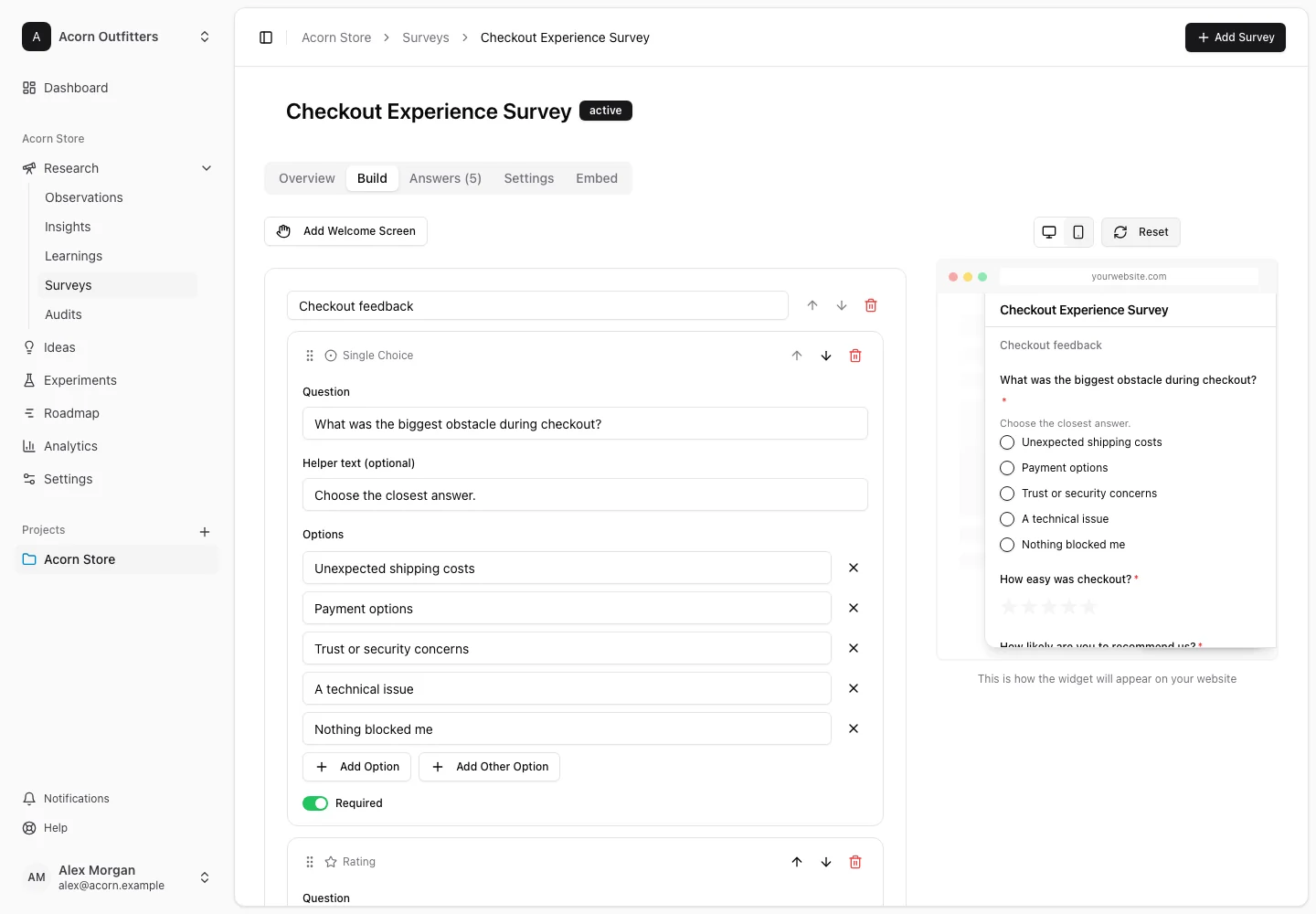
Create the survey
- Select the project and open Research → Surveys.
- Create a new survey, enter its name, and choose Create Survey.
- Open the Build tab on the survey detail page.
- Add the questions you need, edit their wording and settings, and arrange them in the intended order.
- Review the preview, then choose Save for the builder changes.
Choose the right question
| Type | Visitor response |
|---|---|
| Single Choice | One option |
| Multiple Choice | More than one option |
| Rating | A 1–5 star rating |
| NPS | A score from 0 to 10 |
| Short Text | A short single-line answer |
| Long Text | A paragraph |
| Yes / No | One of two answers |
| Emoji Reaction | An emoji rating |
Use a Welcome Screen to introduce the survey and a Thank You Screen for the closing message. These screens provide context rather than collected answers. Review required questions and choice labels before publishing.
Save and preview deliberately
Builder changes and survey settings have separate save actions. Use Discard Changes only when you want to return to the saved version. Check both desktop and narrower layouts in your website review, especially for long choice labels.
A saved survey is not necessarily live. Use publishing and targeting to configure the widget, install the project snippet, and set the survey to Active.
To reuse an existing structure, use the survey's duplicate action and review the copied name, questions, settings, and status before making the new survey active.